How to Generate E-Way Bill on the GST Portal Complete Step-by-Step Guide (2025-26)
Every business owner, accountant, and transporter in India who moves goods worth more than Rs. 50,000 must generate an e-Way Bill before the goods leave the warehouse. Yet one of the most common questions people search for is: how exactly do you generate an e-Way Bill on the portal, step by step?
This page answers that question completely. It covers every method of generating an e-Way Bill through the portal, mobile, SMS, bulk upload, e-invoice integration, and API along with all the documents you need, the fields you must fill, common errors you will face, and exactly how to fix them.
What is E-Way Bill Generation?
E-Way Bill generation is the process of creating an electronic document on the official government portal before transporting goods. When you successfully generate an e-Way Bill, the system gives you a unique 12-digit number called the EWay Bill Number (EBN). This number must accompany the goods throughout their journey either printed on paper or shown digitally on a device.
The generation process involves entering details about the goods being transported (what, how much, and what value), the parties involved (supplier and recipient with their GSTINs), and the transport details (vehicle number or transporter ID). Once all details are submitted and validated, the portal creates the e-Way Bill instantly.
Who Can Generate an E-Way Bill?
Three types of people are authorised to generate an e-Way Bill:
- Registered Supplier: The person or business sending the goods, if they are registered under GST.
- Registered Recipient: If the supplier is unregistered, the registered recipient must generate the EWB.
- Transporter: If neither the supplier nor recipient generates the EWB, the transporter must generate it before moving the goods.
- Citizen (No GSTIN): An individual not registered under GST can generate an EWB through the citizen portal for personal goods movement.
Important: The responsibility to generate the e-Way Bill shifts. If the supplier does not generate it, the transporter is legally responsible. Both can face penalties if goods are moved without a valid EWB.
When Must an E-Way Bill Be Generated?
| Situation | Value Threshold | Who Generates |
| Inter-state movement by registered person | Above Rs. 50,000 | Supplier, recipient, or transporter |
| Intra-state movement | As per state rules (varies) | Supplier, recipient, or transporter |
| Unregistered supplier to registered recipient | Any value | Registered recipient |
| Handicraft goods inter-state | Any value | Dealer (even if GST-exempt) |
| Voluntary generation | Below Rs. 50,000 | Registered person (optional) |
Key Rule Changes for E-Way Bill Generation in 2025 Read Before You Generate
Several important changes were made to the e-Way Bill system in 2025. Not knowing these rules is one of the top reasons businesses face errors or penalties during generation. Read these carefully before you start.
1. Two-Factor Authentication (2FA) is Now Mandatory for All Users
From April 1, 2025, all taxpayers regardless of their annual turnover must use 2FA when logging in to generate e-Way Bills. Earlier this was required only for large businesses. Now it applies to everyone.
- OTP is sent to your GSTIN-registered mobile number via SMS.
- You can also use the Sandes app or NIC-GST-Shield app for offline OTP.
- Without completing 2FA, you cannot access the generation screen.
2. The 180-Day Document Rule
From January 1, 2025, you can only generate an e-Way Bill for invoices or challans that are dated within the last 180 days. If your invoice is older than 180 days from today, the portal will reject it.
Example: If today is June 13, 2026, any invoice dated before December 15, 2025 cannot be used to generate a new e-Way Bill.
Always generate the e-Way Bill on the same day or within a few days of raising the invoice. Never delay EWB generation on old invoices.
3. The 360-Day Extension Cap
From January 1, 2025, the total validity period of any e-Way Bill (including all extensions) cannot exceed 360 days from its original generation date. This is the maximum life of any EWB.
4. E-Way Bill 2.0 Portal is Now Live
From July 1, 2025, a second official portal is available at ewaybill2.gst.gov.in. Both portals are fully synchronised in real time. You can generate on Portal 1 and manage, extend, or cancel on Portal 2 or the other way around. If one portal is slow or down, use the other.
5. HSN Code Length Based on Turnover
- If your annual turnover is below Rs. 5 crore: Use a 4-digit HSN code.
- If your annual turnover is Rs. 5 crore or above: Use a 6-digit HSN code.
Using the wrong HSN code length will cause a portal validation error and block generation.
6. Bill-to / Ship-to Transactions Ship To GSTIN is Now Mandatory
If you have a bill-to / ship-to arrangement (for example, goods are billed to Company A but shipped to Company B’s warehouse), you must now enter the Ship To GSTIN in the EWB form. Earlier this was optional. The portal will not accept the submission without it.
Documents and Details Required to Generate an E-Way Bill
Before you open the portal, collect all of the following details. If any one piece of information is missing, you will not be able to complete the generation and will lose time going back and forth.
Basic Business Details
- Your GSTIN (15-digit GST Identification Number)
- Your e-Way Bill User ID and Password
- Access to OTP (registered mobile number or Sandes/NIC-GST-Shield app for 2FA)
Invoice or Challan Details
- Invoice number or Delivery Challan number the exact reference number on your document
- Invoice date or Challan date must be within the last 180 days
- Type of document: Tax Invoice, Bill of Supply, Bill of Entry, Delivery Challan, Credit Note, or Bill of Exchange
- Total taxable value of goods declared value of the consignment
- Total invoice value including all taxes
- CGST, SGST, IGST, and Cess amounts as applicable
Goods Details
- Product name and description
- HSN code 4-digit (turnover below Rs. 5 crore) or 6-digit (turnover Rs. 5 crore and above)
- Quantity of goods
- Unit of Quantity (UQC) for example, NOS (numbers), KGS (kilograms), MTR (metres), LTR (litres)
- Tax rate applicable GST rate for the goods (e.g., 5%, 12%, 18%, 28%)
Supplier Details
- GSTIN of the supplier
- Trade name or legal name
- Full address of the dispatch location
- State and PIN code of the dispatch location
Recipient Details
- GSTIN of the recipient (or full name and address if recipient is unregistered)
- Trade name or legal name of the recipient
- Full delivery address
- State and PIN code of the delivery location
Transport Details
- Mode of transport: Road, Rail, Air, or Ship
- For road transport: Vehicle registration number of the vehicle carrying the goods
- For rail transport: Railway Receipt (RR) number and date
- For air transport: Airway Bill number and date
- For ship/vessel transport: Bill of Lading number and date
- Transporter ID (TRANSIN) if using a registered transporter instead of own vehicle
- Approximate distance between dispatch PIN code and delivery PIN code (in km)
The portal auto-calculates distance based on PIN codes. You can add up to 10% extra distance to account for actual road route deviations. Always enter the actual road distance, not straight-line distance.
How to Generate E-Way Bill on the Portal Step-by-Step Guide
This is the most commonly used method generating a single e-Way Bill through the official government portal. Follow each step exactly.
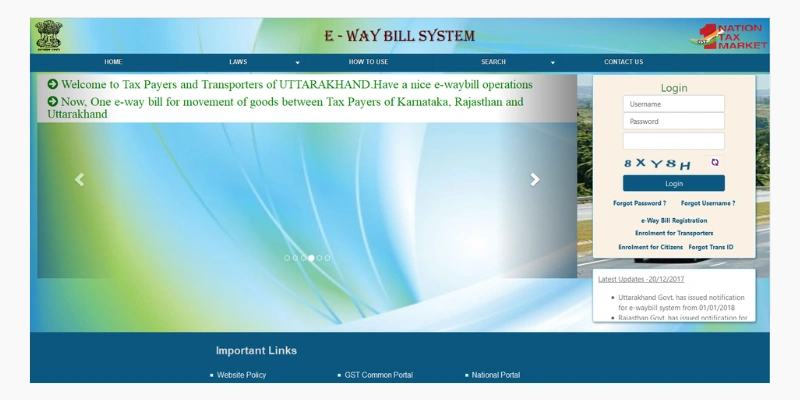
Step 1: Login to the E-Way Bill Portal
- Open your browser and go to: https://ewaybillgst.gov.in (or https://ewaybill2.gst.gov.in).
- Click the ‘Login’ button at the top right of the homepage.
- Enter your registered Username (your EWB User ID not your GSTIN).
- Enter your Password.
- Type the Captcha code exactly as shown. It is case-sensitive.
- Click ‘Login’.
- If 2FA is active on your account (mandatory for all from April 2025), an OTP will be sent to your registered mobile number. Enter the OTP and click Verify.
- After successful login, your dashboard will appear showing your GSTIN, legal name, and user type.
Step 2: Click on Generate New
- On the dashboard, look at the left-side menu.
- Click on ‘e-Way Bill’ to expand the menu.
- Click on ‘Generate New’ from the dropdown options.
- The EWB generation form (Form EWB-01) will open on screen.
If you do not see the ‘Generate New’ option, your account may not have the correct role assigned. Contact the portal helpdesk or check if you are logged in as a taxpayer or transporter.
Step 3: Select the Transaction Type
The first field in the form asks for the Transaction Type. This tells the system who is generating the EWB:
- Select Outward if you are the supplier sending the goods.
- Select Inward if you are the recipient receiving the goods (used when supplier is unregistered or has not generated the EWB).
Step 4: Select the Sub-Type
The Sub-type field tells the system the purpose of the goods movement. Select the one that matches your transaction:
| Sub-Type | When to Use It |
| Supply | Regular sale of goods to a customer. |
| Export | Goods being exported outside India. |
| Job Work | Goods sent to another unit for processing and returned. |
| SKD/CKD | Semi-Knocked Down or Completely Knocked Down goods. |
| Recipient Not Known | Goods dispatched but the final recipient is not yet confirmed. |
| For Own Use | Goods moved to your own branch, office, or warehouse. |
| Exhibition or Fairs | Goods transported for display at exhibitions. |
| Line Sales | Goods sold directly from a vehicle on a sales route. |
| Sales Return | Goods being returned by the buyer to the supplier. |
| Others | Any other reason not listed above. |
Step 5: Select the Document Type
Choose the document on which this EWB is being raised:
- Tax Invoice Standard GST invoice for taxable goods.
- Bill of Supply Used when GST is not applicable (exempt goods or composition dealers).
- Bill of Entry Used for imported goods entering India.
- Delivery Challan Used for goods sent without a sale invoice (e.g., job work, branch transfer).
- Credit Note Used for returns or adjustments.
- Bill of Exchange Used in specific trade transactions.
- Others For situations not covered by the above types.
Step 6: Enter the Document Number and Date
- Enter the Invoice Number, Challan Number, or reference number of the document exactly as it appears on your records. Do not leave spaces or use special characters not present in the original document.
- Enter the Document Date the date printed on the invoice or challan. This date must be within the last 180 days from today. If it is older, the portal will reject the submission.
Step 7: Fill in the From (Supplier) Details
The From section captures where the goods are being dispatched from:
- Enter the GSTIN of the Supplier. When a valid GSTIN is entered, the portal automatically fetches and fills in the supplier’s legal name, trade name, and state. Verify these details carefully.
- Enter the Dispatch From Address the exact address from where goods are being loaded. This may differ from the supplier’s registered address (for example, if goods are dispatched from a warehouse, not the registered office).
- Enter the State of the dispatch location.
- Enter the PIN code of the dispatch location.
Step 8: Fill in the To (Recipient) Details
The To section captures the delivery destination:
- Enter the GSTIN of the Recipient. The portal will auto-fill the recipient’s details. If the recipient is unregistered, select ‘URP’ (Unregistered Person) from the dropdown and manually enter their full name and address.
- Enter the Deliver To Address the exact address where goods will be delivered.
- Enter the State of the delivery location.
- Enter the PIN code of the delivery location.
For Bill-to / Ship-to transactions: If goods are billed to one party but shipped to another, you must enter the Ship To GSTIN separately. This field is now mandatory for such transactions (effective 2025).
Step 9: Enter Item Details
This section captures the details of the goods being transported. You must add at least one item. For consignments with multiple products, add each one separately.
- Enter the Product Name the name of the goods as mentioned on the invoice.
- Enter the Product Description a brief description for clarity.
- Enter the HSN Code use 4-digit for turnover below Rs. 5 crore, or 6-digit for Rs. 5 crore and above. Getting this wrong will block submission.
- Enter the Quantity the number of units being transported.
- Select the Unit of Quantity (UQC) such as NOS, KGS, MTR, LTR, BOX, BAG, etc.
- Enter the Taxable Value the assessable value of the goods before tax.
- Select the Tax Rate the GST rate applicable to the goods (0%, 0.25%, 1%, 1.5%, 3%, 5%, 7.5%, 12%, 18%, or 28%).
- The CGST, SGST, or IGST values will auto-calculate based on the taxable value and selected rate. Verify them against your invoice.
- If applicable, enter the Cess amount.
- If there are other charges (freight, packing, etc.) not included in taxable value, enter them in the Other Value field.
Tip: If you regularly transport the same products, use the My Masters section to save product details. This makes future EWB generation faster by auto-filling product information.
Step 10: Enter Transporter Details
This is Part B of the e-Way Bill form. It captures how the goods will be moved.
- Select the Mode of Transport: Road, Rail, Air, or Ship.
If transport is by Road:
- Enter the Vehicle Number in the format: AA00AA0000 (state code + district code + series + number). Example: MH02AB1234.
- If a registered transporter is handling delivery, enter their Transporter ID (TRANSIN) instead of the vehicle number. The transporter will update the vehicle number later.
- Enter the Vehicle Type: Regular or Over-Dimensional Cargo (ODC).
If transport is by Rail:
- Enter the Transporter ID of the railway.
- Enter the Railway Receipt (RR) Number and its date.
If transport is by Air:
- Enter the Transporter ID of the airline.
- Enter the Airway Bill Number and date.
If transport is by Ship:
- Enter the Transporter ID of the shipping company.
- Enter the Bill of Lading Number and date.
- Enter the Approximate Distance in km between the dispatch PIN code and delivery PIN code. The portal suggests a system-calculated distance based on PIN codes. You can override this with the actual road distance. You are allowed to add up to 10% extra over the system distance.
Step 11: Submit the Form
- After filling all mandatory fields, click the ‘Submit’ button.
- The portal will validate all entered data. This takes a few seconds.
- If any field has an error, the portal will highlight it with a red message. Read the error, correct the specific field, and click Submit again.
- If all validations pass, the e-Way Bill is generated successfully.
Step 12: Note Your EWB Number and Print
- The portal will display the generated e-Way Bill with a unique 12-digit E-Way Bill Number (EBN).
- Note down the EBN immediately or screenshot it.
- Click ‘Print’ to print the e-Way Bill. You can choose Basic Print (summary) or Detailed Print (full details with tax breakup).
- The EWB is also available to download as a PDF. Use your browser’s Print > Save as PDF option.
- Share the EBN with the transporter and the recipient. The transporter must carry a physical or digital copy of the EWB during transit.
The e-Way Bill contains a QR code that GST officers use to verify the consignment at checkposts. Make sure the printed copy is clear and the QR code is scannable.
How to Generate E-Way Bill on Mobile Phone
You can generate an e-Way Bill directly from your mobile phone using the browser. There is no mandatory separate app the portal is mobile-responsive and works on Chrome (Android) and Safari (iPhone).
Method 1: Mobile Browser (Recommended)
- Open Chrome on your Android phone or Safari on iPhone.
- Go to https://ewaybillgst.gov.in in the address bar.
- Tap the Login button.
- Enter your Username, Password, and Captcha.
- Complete the OTP verification for 2FA.
- Tap on ‘e-Way Bill’ in the menu and select ‘Generate New’.
- Fill in all the form fields as described in the steps above.
- Tap Submit to generate the EWB.
- Tap Print or take a screenshot of the EBN for your records.
On mobile, the form may be scrollable. Scroll down carefully to ensure all fields are filled especially the transporter details in Part B which appear towards the bottom of the form.
Method 2: Using the NIC e-Way Bill Android App
NIC has an official Android app for e-Way Bill generation. It is available on the Google Play Store. While the portal website is sufficient, the app offers a slightly more mobile-friendly experience for frequent users.
- Download the ‘e-Way Bill’ app from Google Play Store (search for: NIC e-Way Bill).
- Log in with your EWB User ID and Password.
- Tap ‘Generate New EWB’.
- Fill in all required details and tap Submit.
- The EBN will appear on screen. Note it down or share it directly from the app.
How to Generate E-Way Bill via SMS Without Internet
The SMS-based generation is useful when you are in a location with no internet or data access. You can generate, update vehicle details, cancel, and get EWB details via SMS from your registered mobile number.
Step 1: Activate SMS Facility
- Log in to the e-Way Bill portal.
- Go to ‘Registration’ in the top menu.
- Click ‘For SMS’.
- Your registered mobile number (linked to GSTIN) will be displayed.
- Click ‘Send OTP’ to verify and activate the SMS facility.
- Enter the OTP received on your mobile and click Verify.
- The SMS facility is now active on your registered mobile number.
SMS Format for Generating an E-Way Bill
Send an SMS to 77382 99899 using the following format from your registered mobile number:
EWBG TranType RecGSTIN DelPinCode ItemHSNCode ApproxValue VehicleNo
| Parameter | What to Enter |
| EWBG | Fixed keyword must be typed exactly as EWBG to start the SMS command. |
| TranType | Transaction type: O for Outward (supplier), I for Inward (recipient). |
| RecGSTIN | GSTIN of the recipient (the person receiving the goods). |
| DelPinCode | PIN code of the delivery location. |
| ItemHSNCode | HSN code of the goods being transported. |
| ApproxValue | Approximate value of the goods in rupees. |
| VehicleNo | Vehicle registration number without spaces. |
Example SMS: EWBG O 27AABCS1429B1Z1 400001 1234 75000 MH02AB1234
If your SMS is formatted correctly and all details are valid, you will receive a reply SMS containing the 12-digit EWB Number. If there is an error, the reply will mention the specific field that needs correction.
Other SMS Commands
- Update Vehicle Number: EWBV EWBNo VehicleNo to update the vehicle in an existing EWB.
- Cancel EWB: EWBC EWBNo Reason to cancel an EWB within 24 hours.
- Get EWB Details: EWBD EWBNo to fetch details of an existing EWB.
The SMS facility is limited to simple, single-item consignments. For complex transactions with multiple items, different tax rates, or special sub-types, use the portal or API instead.
How to Generate E-Way Bills in Bulk JSON Upload Method
If your business handles a high volume of invoices daily, generating EWBs one by one is impractical. The portal provides a Bulk Generation feature using a JSON file. This lets you generate dozens or even hundreds of e-Way Bills in a single upload.
What You Need for Bulk Generation
- The EWB JSON template file (downloaded from the portal)
- All invoice data filled into the JSON template or generated from your accounting software
- A desktop or laptop computer (bulk upload works best on desktop)
Step-by-Step: Download the JSON Template
- Log in to the e-Way Bill portal.
- On the homepage, click on ‘How to Use’ in the top menu.
- Select ‘Tools’ from the dropdown.
- Click ‘Bulk Generation Tools’.
- Download the ‘EWB JSON Preparation Tool’ (an Excel-based tool that converts your data to JSON format).
- Alternatively, download the raw ‘EWB JSON Format’ file if you are generating JSON programmatically.
Step-by-Step: Prepare the JSON File
- Open the downloaded Excel-based JSON preparation tool.
- Fill in your invoice details row by row one row per e-Way Bill.
- Each row requires all the standard fields: transaction type, sub-type, document type, document number, date, supplier GSTIN, recipient GSTIN, HSN code, value, vehicle number, etc.
- After filling all rows, click the ‘Prepare JSON’ button in the Excel tool.
- The tool will validate your data and generate a .json file on your computer.
If you use accounting software such as Tally, Zoho Books, or any GST-integrated software, you can directly export a JSON file from the software without using the Excel tool. This is faster for businesses generating 50+ EWBs daily.
Step-by-Step: Upload and Generate Bulk EWBs
- Log in to the e-Way Bill portal.
- Click on ‘e-Way Bill’ in the left menu.
- Click ‘Generate Bulk’.
- Click ‘Browse’ and select the JSON file you prepared.
- Click ‘Upload and Generate’.
- The portal processes the file and generates all e-Way Bills in the JSON simultaneously.
- A results table appears showing the EBN generated for each entry, or the error for any failed entries.
- Download the results. For entries with errors, correct the specific fields and re-upload.
Bulk generation is the fastest method for high-volume businesses. A single JSON file can contain hundreds of EWB entries. Make sure your JSON file structure matches the portal’s current template templates are updated when new rules are introduced.
How to Generate E-Way Bill Through E-Invoice Integration
If your annual turnover is Rs. 5 crore or above, you are likely already generating e-Invoices. The good news is that when you generate an e-Invoice for a consignment that requires an e-Way Bill, you can generate both simultaneously in a single step without logging into the EWB portal separately.
How E-Invoice and E-Way Bill Integration Works
The e-Invoice portal (einvoice1.gst.gov.in) and the e-Way Bill portal are connected. When you generate an e-Invoice for goods worth more than Rs. 50,000:
- The e-Invoice portal pushes the invoice data to the e-Way Bill portal automatically.
- If the consignment value exceeds the EWB threshold, the system generates a Part A slip with a temporary EWB reference number.
- The transporter then logs into the EWB portal and updates Part B (vehicle details) using this reference number.
- The complete e-Way Bill is generated once Part B is updated.
This integration eliminates double data entry. You do not need to separately log into the e-Way Bill portal and re-enter invoice details. This is the recommended workflow for businesses above Rs. 5 crore turnover.
Step-by-Step: Generate EWB Through E-Invoice Portal
- Log in to the e-Invoice portal at einvoice1.gst.gov.in.
- Generate your e-Invoice as usual (enter buyer GSTIN, item details, tax details, etc.).
- On the e-Invoice generation form, look for the ‘Generate with e-Way Bill’ option.
- If the consignment value qualifies for EWB generation, enter the transport details (vehicle number or transporter ID, distance).
- Submit the e-Invoice. The system will generate the IRN (Invoice Reference Number) for the e-Invoice AND the EBN for the e-Way Bill in a single transaction.
- Both the IRN and EBN appear on the output document. Share the EBN with the transporter.
What is a Part A Slip and When to Use It
A Part A Slip is a temporary document generated when only Part A of the e-Way Bill is completed and Part B (vehicle details) is not yet filled. This happens when a supplier knows the goods details but has not yet confirmed the transport vehicle at the time of generation.
When is a Part A Slip Used?
- When a transporter is assigned but the vehicle number is not confirmed yet.
- When goods are loaded in multiple stages and the vehicle is not ready at the time of invoice generation.
- When a registered transporter is used who will fill in Part B themselves.
How to Generate a Part A Slip
- Follow the standard EWB generation steps (Steps 1 to 10 above).
- In the Transporter Details section, enter the Transporter ID (TRANSIN) instead of a vehicle number.
- Click Submit.
- A Part A Slip with a unique Part A Reference Number is generated.
- Share this reference number with the transporter.
- The transporter logs into their account, finds the Part A reference, enters the vehicle number, and completes Part B.
- The full e-Way Bill is then generated and valid for transit.
Important: A Part A Slip alone does NOT authorise goods movement. Goods can only move once Part B is completed and the full EWB is active. If Part B is not updated within 15 days of Part A generation, the EWB is marked as ‘DIS’ (Discarded) status.
How to Generate a Consolidated E-Way Bill (for Multiple Consignments in One Vehicle)
When a single vehicle carries goods for multiple consignments each with its own separate e-Way Bill a Consolidated e-Way Bill (Form EWB-02) must be generated. This gives the transporter one single document to carry instead of multiple individual EWBs.
Who Generates the Consolidated EWB?
The Consolidated EWB is typically generated by the transporter, since they are the one managing the vehicle that carries multiple consignments from different suppliers.
Step-by-Step: Generate Consolidated E-Way Bill
- Ensure all individual e-Way Bills for each consignment in the vehicle are already generated and active.
- Log in to the e-Way Bill portal.
- In the left menu, click ‘Consolidated EWB’.
- Click ‘Generate Consolidated EWB’.
- Enter the Vehicle Number for the vehicle carrying all the consignments.
- Select the Mode of Transport (usually Road).
- Enter the State from where the vehicle will start its journey.
- Add each individual EWB number one by one in the list. You can add as many as needed.
- Click Submit.
- The Consolidated EWB is generated with a unique CEWB Number. Print it and give it to the driver.
The driver must carry this Consolidated EWB document along with copies of individual EWBs for each consignment. GST officers at checkposts may verify individual EWBs as well as the consolidated one.
How to Generate E-Way Bill Without GSTIN Citizen Mode
Not everyone who moves goods is a registered GST taxpayer. An individual moving personal goods or an unregistered person can still generate an e-Way Bill using the Citizen portal. This does not require a GSTIN.
Step-by-Step: Generate EWB as a Citizen
- Go to ewaybillgst.gov.in.
- Click on ‘Registration’ in the top navigation menu.
- Select ‘e-Way Bill for Citizens’.
- Enter your mobile number.
- An OTP will be sent to your mobile. Enter it and click Verify.
- Fill in your basic personal details (name, address) to create your citizen profile.
- After profile creation, you can access the Citizen EWB generation form.
- Fill in all the goods details, origin address, destination address, and vehicle details.
- Click Submit to generate the EWB.
Citizens can generate e-Way Bills for goods movement for personal use, exhibition, or any non-commercial reason. The system records the movement but links it to your mobile number rather than a GSTIN.
What Happens After the E-Way Bill is Generated?
The EWB is Shared Automatically
Once generated, the portal automatically notifies the supplier, recipient, and transporter (if a Transporter ID was entered) about the EWB via SMS and email. All parties can view the EWB on the portal using the EBN.
The Recipient Can Accept or Reject
The recipient has a 72-hour window from the time of EWB generation (or until delivery, whichever is earlier) to either accept or reject the EWB.
- If the recipient does nothing within 72 hours, the EWB is considered accepted by default.
- To reject: Log in as recipient, go to ‘e-Way Bill’ > ‘Reject’, enter the EWB number, and give a reason for rejection.
The EWB Becomes Valid for Transit
The e-Way Bill is valid from the moment Part B (vehicle details) is filled. The validity countdown begins from the first Part B entry, not from the time of Part A generation.
Vehicle Can Be Changed Mid-Transit
If goods are transferred to a different vehicle during the journey (for example, due to a vehicle breakdown), the transporter must update Part B with the new vehicle number before the goods continue moving. There is no penalty for updating Part B it is allowed and encouraged for transparency.
Common Errors During E-Way Bill Generation and How to Fix Them
Error: Invalid GSTIN
Cause: The GSTIN entered for the supplier or recipient is incorrect, cancelled, or not active.
Fix: Verify the GSTIN on the GST portal (gst.gov.in) using the ‘Search Taxpayer’ tool before entering it in the EWB form. Only active GSTINs will be accepted.
Error: HSN Code Invalid or Not Accepted
Cause: You entered the wrong HSN code, or the digit length does not match your turnover bracket.
Fix: Use 4-digit HSN for turnover below Rs. 5 crore. Use 6-digit HSN for Rs. 5 crore and above. Cross-check the HSN code against the official HSN classification or your invoice.
Error: Document Date is More than 180 Days Old
Cause: The invoice or challan date you entered is older than 180 days from today, which is not allowed since January 2025.
Fix: You cannot use this invoice for EWB generation. Either issue a new invoice or contact the helpdesk if you believe the date restriction should not apply to your case.
Error: Vehicle Number Format is Invalid
Cause: The vehicle registration number was entered in the wrong format.
Fix: Vehicle numbers must be entered in the standard Indian format: two letters (state code) + two digits (district code) + two letters (series) + four digits (number). Example: MH02AB1234. Do not include spaces or hyphens. For temporary registered vehicles, use the format: TMXXXXXX.
Error: Value Mismatch Total Invoice Value Does Not Match
Cause: The sum of taxable value, CGST, SGST, IGST, cess, and other charges does not equal the total invoice value you entered (the system allows a maximum grace difference of Rs. 2.00).
Fix: Recheck your tax calculations. Make sure you have entered the correct tax rate and that the CGST, SGST, or IGST values are auto-calculated correctly. Correct any manual overrides that may have caused the mismatch.
Error: Part A Submitted Without Part B EWB Not Valid
Cause: You generated Part A (invoice details) but forgot to fill in Part B (vehicle or transporter details).
Fix: Go to ‘e-Way Bill’ > ‘Update Part B / Vehicle’. Enter the EWB number or Part A reference number and add the vehicle details. The EWB becomes valid only after Part B is completed.
Error: Ship To GSTIN Missing for Bill-to/Ship-to Transaction
Cause: You have a bill-to/ship-to arrangement but did not enter the Ship To GSTIN.
Fix: Enter the GSTIN of the party to whom goods are being physically shipped (Ship To), separately from the party to whom the invoice is billed (Bill To). Both fields are now mandatory for such transactions.
Portal Showing No Response or Time-Out After Submit
Cause: High server load on the portal, especially around month-end when millions of users generate EWBs simultaneously.
Fix: Wait 2 to 3 minutes and try again. If the primary portal is unresponsive, switch to the backup portal at ewaybill2.gst.gov.in. Check the GSTN Twitter handle for portal status updates. Avoid generating EWBs at peak hours (9 AM to 11 AM and 4 PM to 6 PM) if not urgent.
What You Can Do After an E-Way Bill is Generated
Update Vehicle Number (Part B Update)
If the vehicle changes during transit or was not entered at the time of generation, update Part B using the following steps:
- Log in and go to ‘e-Way Bill’ > ‘Update Part B / Vehicle’.
- Enter the EWB number.
- Update the vehicle registration number and other transport details.
- Click Submit. The update takes effect immediately.
There is no limit on the number of times Part B can be updated, as long as the EWB is still valid.
Extend the EWB Validity
If goods cannot reach the destination within the EWB validity period, extend it before expiry (or within 8 hours after expiry):
- Go to ‘e-Way Bill’ > ‘Extend Validity’.
- Enter the EWB number.
- Provide a valid reason: Natural calamity, Law and order issue, Transhipment, Accident, or Other.
- Enter the new estimated distance and expected delivery date.
- Submit the extension.
Cancel the EWB
If the transaction is cancelled or wrong details were entered, cancel the EWB within 24 hours of generation. After 24 hours, cancellation is not possible through the portal.
Reject the EWB (Recipient Action)
As the recipient, if you do not agree with the details on the EWB, reject it within 72 hours of generation through the ‘Reject’ option in your login.
Print or Download Again
You can reprint or download any EWB at any time from ‘e-Way Bill’ > ‘Print EWB’. Just enter the EWB number to retrieve and print it.
Pro Tips for Faster and Error-Free E-Way Bill Generation
- Set up My Masters: Save your frequent customers, suppliers, products, and transporters in the My Masters section. This auto-fills repeated fields and cuts generation time by more than half.
- Use your accounting software: If you use Tally, Zoho Books, or any GST-integrated ERP, generate EWBs directly from the software without logging into the portal every time.
- Generate EWBs in bulk: For 20 or more invoices daily, use the bulk JSON upload method instead of one-by-one generation. It saves hours every week.
- Integrate e-Invoice and e-Way Bill: If your turnover is Rs. 5 crore or above, generate both the e-Invoice and the e-Way Bill in a single step from the e-Invoice portal.
- Always verify GSTIN before entering: Use the Search Taxpayer tool on gst.gov.in to confirm a recipient’s GSTIN is active before generating the EWB.
- Bookmark the backup portal: Keep ewaybill2.gst.gov.in bookmarked. Switch to it instantly whenever the primary portal is slow.
- Generate early: Always generate the EWB before the goods leave the premises. Never generate it after goods are already in transit this is a compliance violation.
- Keep your mobile number updated: If your registered mobile number changes, update it on the GST portal immediately. An outdated number means no OTP, which blocks both login and 2FA.
Frequently Asked Questions
Can I generate an e-Way Bill after the goods have already been dispatched?
Technically the system allows it, but it is a compliance violation. The e-Way Bill must be generated before the goods leave the dispatch location. Generating it after dispatch and claiming it was done before is considered tax evasion and can attract penalties.
What if I make a mistake in the e-Way Bill after generating it?
Part A of a generated EWB cannot be edited. You must cancel the EWB within 24 hours of generation and generate a new one with the correct details. Only Part B (vehicle and transporter details) can be updated after generation.
Can one invoice have multiple e-Way Bills?
No. A single invoice should have only one active e-Way Bill. If an EWB is cancelled, you can generate a fresh one against the same invoice.
What is the maximum number of items I can add in one e-Way Bill?
The portal allows up to 250 item lines in a single e-Way Bill. For consignments with more than 250 line items, you may need to split them into multiple EWBs or contact the helpdesk for guidance.
Do I need to generate a new EWB if the goods are transferred from one vehicle to another mid-journey?
No. You do not need a new EWB. Simply update Part B with the new vehicle number using the ‘Update Part B / Vehicle’ option. This is a free and unlimited update allowed for any active EWB.
Can I generate an e-Way Bill for goods worth less than Rs. 50,000?
Yes. Generation is optional for goods valued below Rs. 50,000 for registered persons. However, it becomes mandatory even below Rs. 50,000 if the supplier is unregistered, if the goods are specifically notified, or if the state rules require it for intra-state movement.
What happens to the e-Way Bill if the sale is cancelled?
You must cancel the EWB within 24 hours of generation. Never leave a generated EWB active for a transaction that has been cancelled, as this can cause reconciliation issues in your GSTR-1 and e-Way Bill reports.
Is a printed copy of the e-Way Bill mandatory or is a digital copy acceptable?
Both are acceptable. The transporter can carry a printed copy of the EWB or show it digitally on a phone or tablet when asked by a GST officer. The officer can verify it by scanning the QR code on the EWB.
How long does it take to generate an e-Way Bill on the portal?
Under normal portal conditions, the generation process takes 2 to 5 minutes once you have all the required details ready. On busy days (month-end, quarter-end), it may take slightly longer due to high server load.
Can I generate a backdated e-Way Bill?
No. The e-Way Bill must be generated on the actual date of goods movement or just before it. The portal uses the current date as the generation date. You cannot set a future date or a past date. However, your invoice date can be earlier, as long as it is within the 180-day window.
About This Guide
This page is part of ewaybill.org’s comprehensive e-Way Bill documentation for Indian taxpayers, transporters, business owners, accountants, and logistics professionals. Every step, rule, and table in this guide is written based on the official advisories and guidelines published by GSTN and NIC as of June 2026.
- Last Updated: June 2026
- Sources Referenced: GSTN Advisory No. 611 (June 16, 2025) | GSTN Advisory (December 17, 2024) | Official EWB API documentation at docs.ewaybillgst.gov.in | NIC e-Way Bill system documentation
- Applicable Portals: ewaybillgst.gov.in | ewaybill2.gst.gov.in
- Helpdesk: 1800-103-4786 (Toll Free) | Available Monday to Saturday, 9 AM to 6 PM