What is an E-Way Bill?
An E-Way Bill (Electronic Way Bill) is a document required under GST for the movement of goods worth more than the threshold value. It is generated electronically on the official portal at ewaybillgst.gov.in (earlier known as ewaybill.nic.in) and must be carried, printed or digital, along with the consignment. The bill links the supplier, the recipient, the goods and the vehicle into one record that a tax officer can verify in transit. Every bill carries a unique 12-digit E-Way Bill Number, or EBN, which is the reference you quote for status checks, updates and cancellation.
In short, the e-way bill is how the GST system tracks goods on the road. If the value of the consignment crosses the limit, the supplier, recipient or transporter must generate one before the goods move. The rest of this page walks through each part of the system in plain English.
Find your topic
When is an E-Way Bill required?
An e-way bill is mandatory for the inter-state movement of goods where the consignment value exceeds ₹50,000. For movement within a state, the threshold is set by that state: many states use ₹50,000, while several apply a higher ₹1,00,000 limit. A bill is also required regardless of value in specific cases, such as the inter-state movement of goods for job work and the inter-state movement of handicraft goods by a dealer exempt from registration.
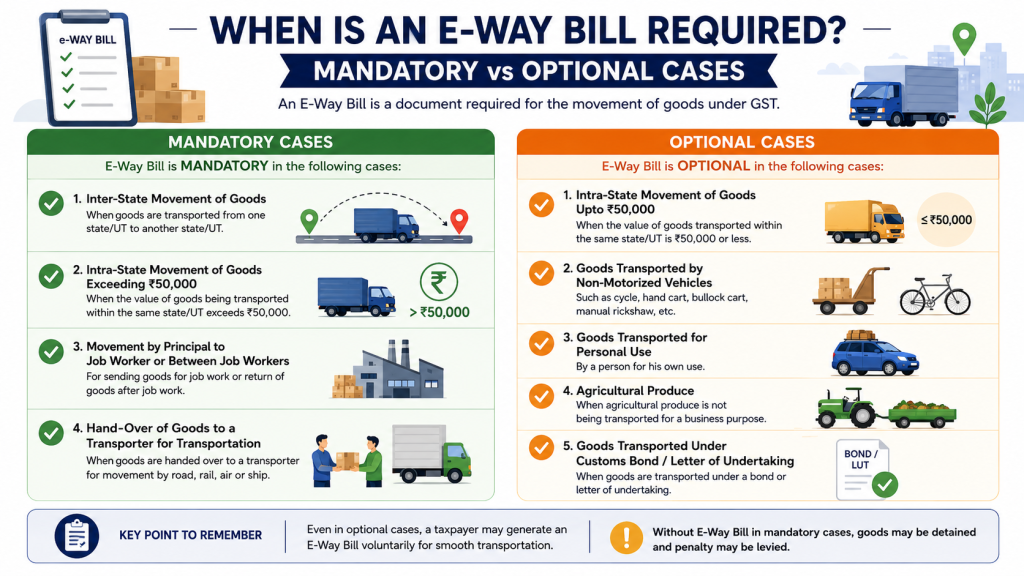
Some movements are exempt, including goods carried by non-motorised transport, certain specified goods, and movement within notified areas. When you are unsure, generating a bill is the safer choice, because the penalty for moving without one is steep. See the complete guide for the full list of cases.
Part A and Part B explained
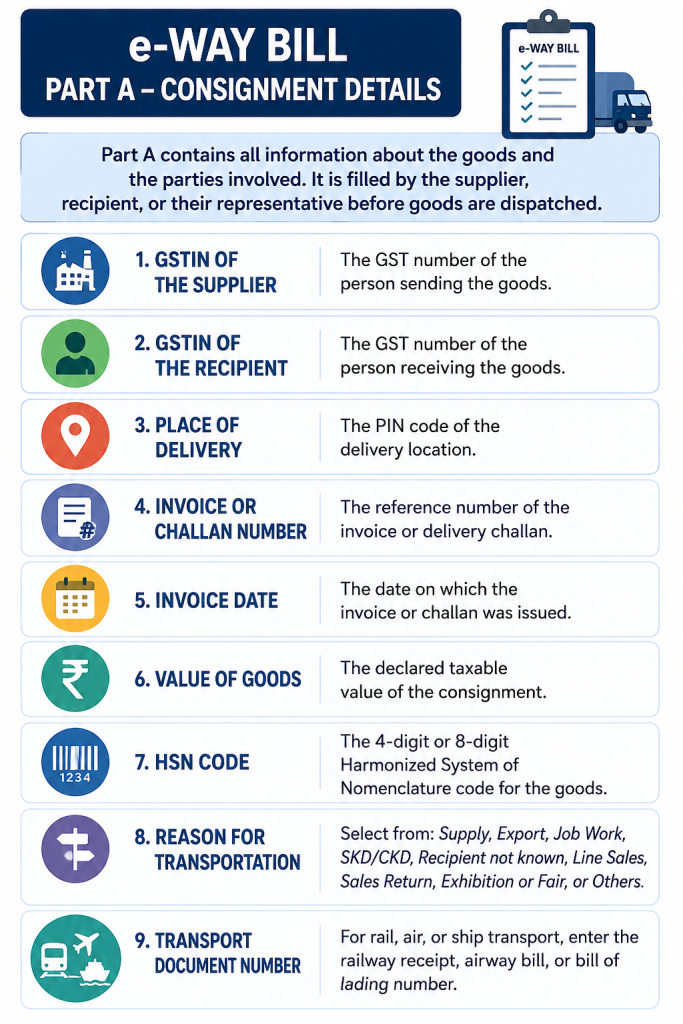
Every e-way bill has two parts. Part A captures the consignment details: the GSTIN of the supplier and recipient, the place of dispatch and delivery, the invoice or challan number and date, the HSN code, the value of goods and the reason for transport. Part B captures the transport details: the vehicle number for road movement, or the transporter document number for rail, air or ship.
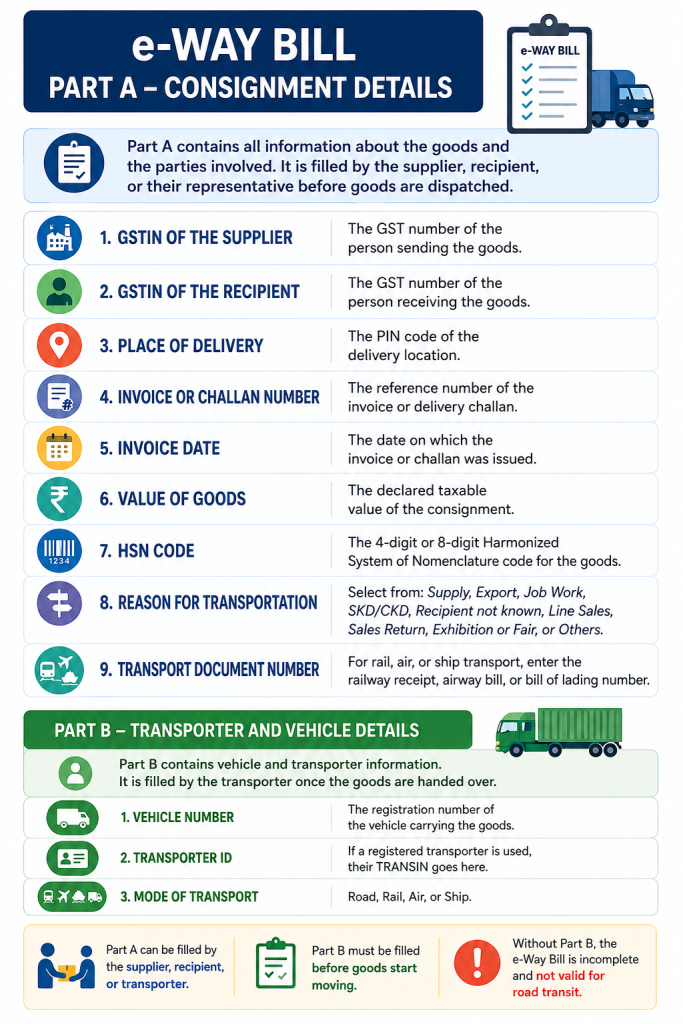
A bill is valid for the movement of goods only once Part B is filled. You can save Part A first and add Part B later, for example when the vehicle is assigned, and the validity period is counted from the first Part B entry. Read the Part A and Part B pages for field-by-field help.
The official e-way bill portal
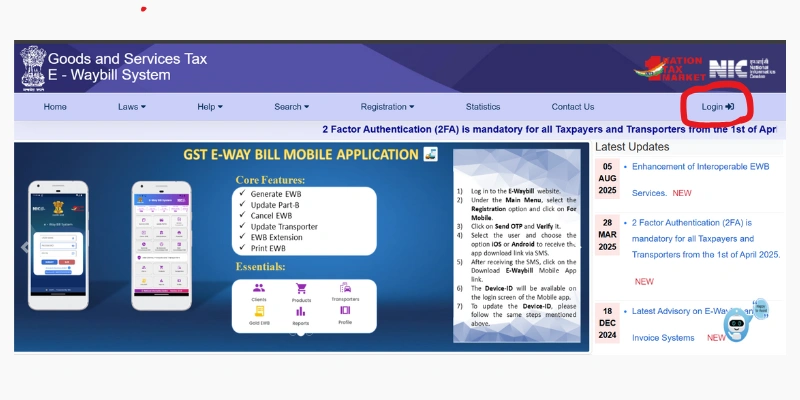
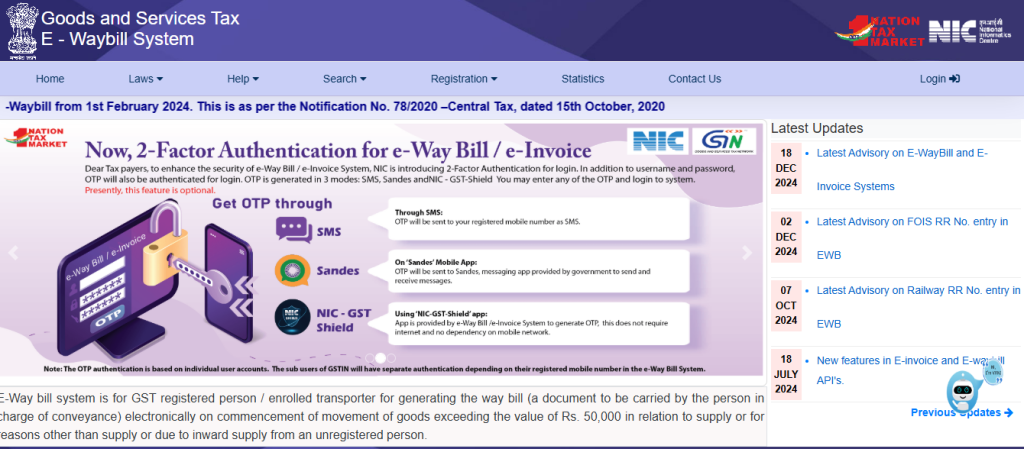
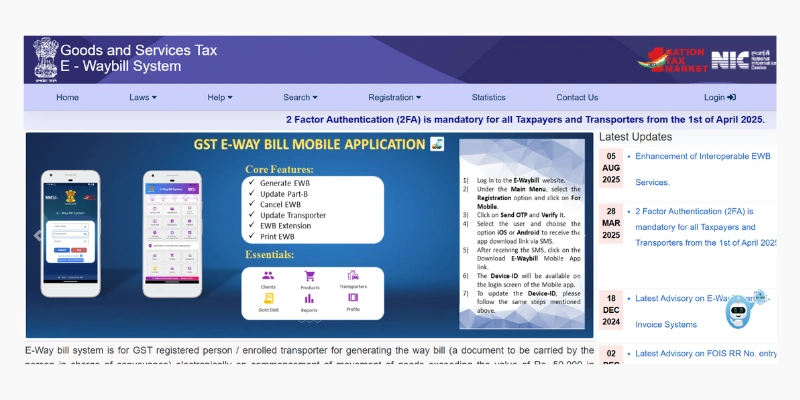
All real e-way bill transactions happen on the official government portal at ewaybillgst.gov.in. From the portal home page you can log in, register as a new user, search for a bill, verify a bill by its number, and read notifications about rule changes. The same system is also reachable through the SMS and API channels for businesses that generate bills in bulk.
This website, ewaybill.org, is an independent guide. We explain how the portal works, but you must complete actual logins, generation and cancellation on the official site.
Is ewaybill.org the official website?
No. EWayBill.org is an independent informational resource and is not affiliated with the government, the GST Network (GSTN) or the National Informatics Centre (NIC). We never ask for your username, password or OTP. The official branding shown here is only for reference, so you can recognise the genuine portal.
Always generate, print and cancel real bills at ewaybillgst.gov.in. Use our guides and free tools to understand the process before and after you visit the official site.
E-Way Bill login
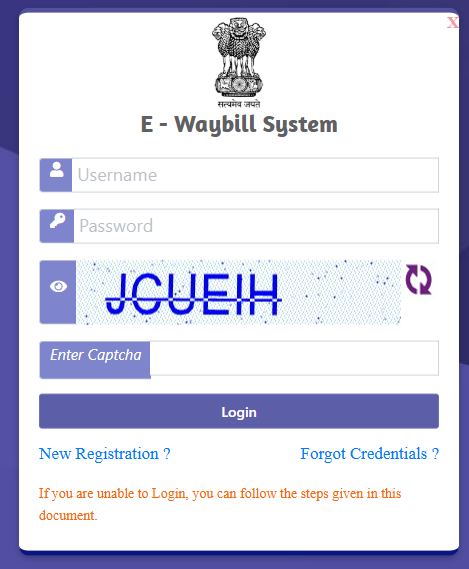
The e-way bill login is separate from the main GST portal login. When you registered for the e-way bill system you created a dedicated username and password, and those are the credentials you use here. On the login box you enter your username, your password and the on-screen captcha, then submit to reach your dashboard.
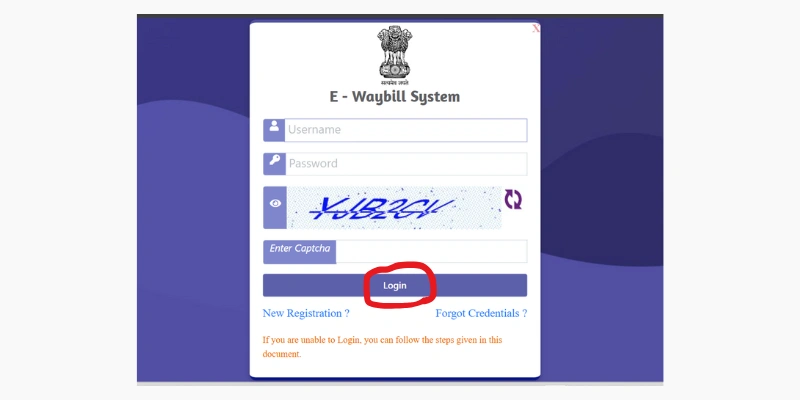
If your login fails, the usual reasons are a wrong password, an expired session, or a blocked account after several failed attempts. The login guide covers each case.
Username, password and captcha
After typing your username and password, complete the captcha exactly as shown, then select the login button. The captcha is case sensitive, so check for uppercase letters and a zero versus the letter O. If the characters are hard to read, refresh the captcha for a new one.
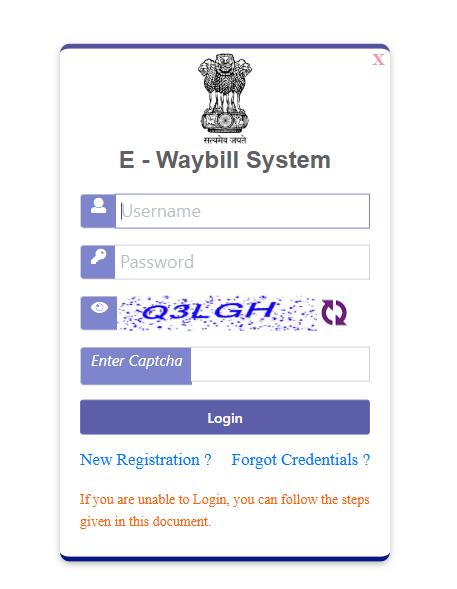
If you have forgotten your password, use the forgot password link on the login page. The portal verifies your registered mobile number with an OTP before letting you set a new password.
2-Factor Authentication (2FA) OTP
Since 1 April 2025, 2-Factor Authentication is mandatory for every e-way bill login. After your username and password are accepted, the portal asks for a one-time password (OTP). You can receive this OTP in three ways: by SMS to your registered mobile number, through the Sandes app, or through the NIC-GST-Shield app, which can generate the OTP even without a network.
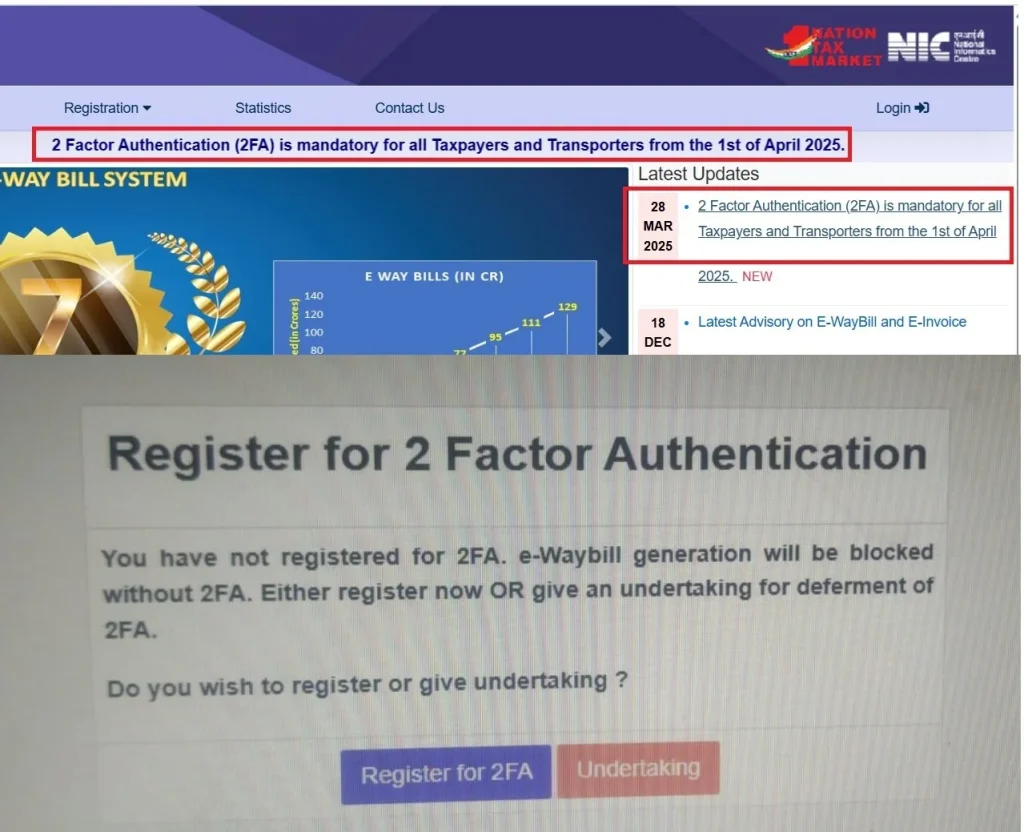
If the OTP does not arrive, wait a minute and request it again, confirm that your registered mobile number is correct, and make sure your SMS inbox is not full. Repeated OTP failures are one of the most common login complaints.
E-Way Bill login on mobile
You can log in to the e-way bill portal from a mobile browser as well as a desktop. The mobile login uses the same username, password, captcha and OTP flow, and the dashboard adapts to the smaller screen. For frequent users, the NIC-GST-Shield app makes 2FA faster because it generates the OTP on the same device.
Mobile access is useful for transporters who update Part B or extend validity while on the move, although a stable connection is recommended for bulk actions.
The dashboard after login
Once your login and OTP are accepted, you land on the e-way bill dashboard. From here you can generate a new bill, update Part B, extend validity, cancel a bill, print a slip, and view reports of the bills you have generated and received. The menu groups these actions, and recent activity is shown so you can return to a bill you were working on.
The dashboard is also where you manage sub-users and assign roles, which helps when several staff in the same business generate bills.
E-Way Bill registration
Before you can log in, you must register on the e-way bill system. A GST-registered taxpayer registers using the GSTIN: the portal sends an OTP to the mobile number linked to that GSTIN, and after verification you create a username and password. A transporter who is not registered under GST enrols separately to receive a 15-digit Transporter ID, known as a TRANSIN.
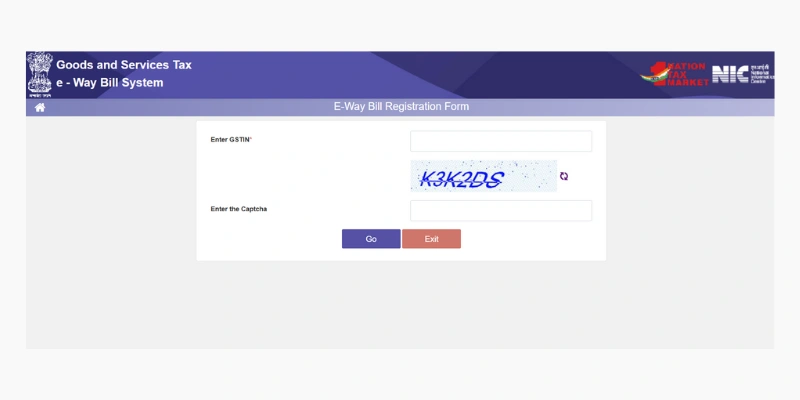
Registration is a one-time step. After it is complete, you use the same credentials for every future login, generation and cancellation. See the registration guide for the taxpayer and transporter steps.
Filling the registration form
On the registration form, your business name, address and GSTIN are pulled automatically from GST records once your OTP is verified, which reduces typing errors. You then choose a username, which must be unique across the system, and set a strong password. If your preferred username is taken, the portal prompts you to try another.
Keep your registered mobile number current, because every OTP for login, password reset and certain updates is sent to that number. If the number changes, update it through the GST portal so the e-way bill system stays in sync.
How to generate an E-Way Bill
To generate an e-way bill, open the generate-new option, then fill Part A with the transaction type, the supplier and recipient GSTIN, the document number and date, the HSN code, the quantity and the value of goods. Next, enter Part B with the mode of transport and the vehicle number. When you submit, the portal validates the entries and issues the 12-digit EBN.
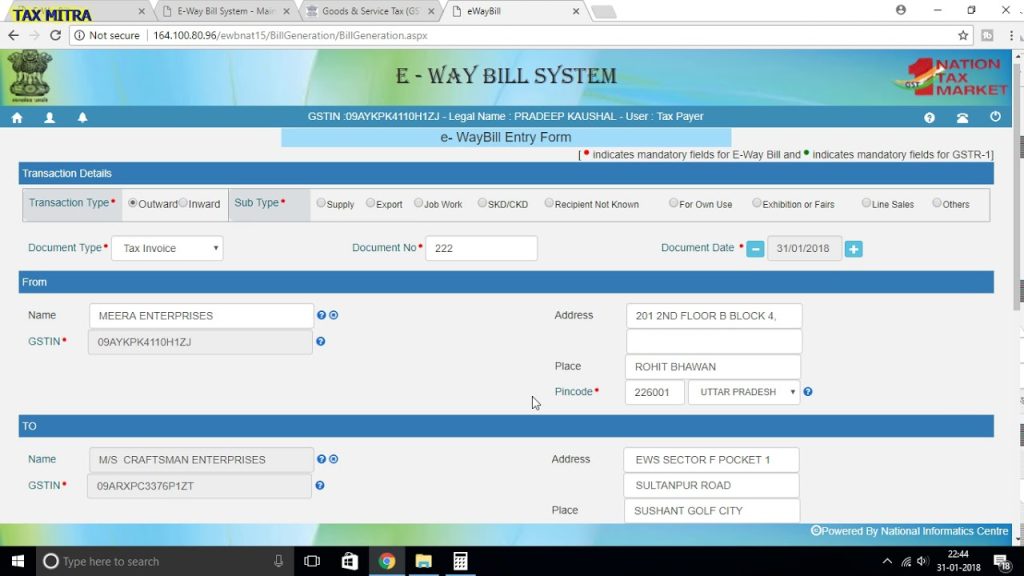
You can also generate bills in bulk by uploading a JSON file, through your accounting software, or by SMS for a single consignment. Whichever method you use, the EBN and the validity date are produced the same way. The generation guide has the full walkthrough.
Printing and downloading the slip
After generation, you can print the e-way bill slip or download it as a PDF. The slip shows the EBN, a QR code, the consignment summary and the validity date. During transit the goods must be accompanied by this slip or at least the EBN, because an officer can scan the QR code to verify the bill on the spot.
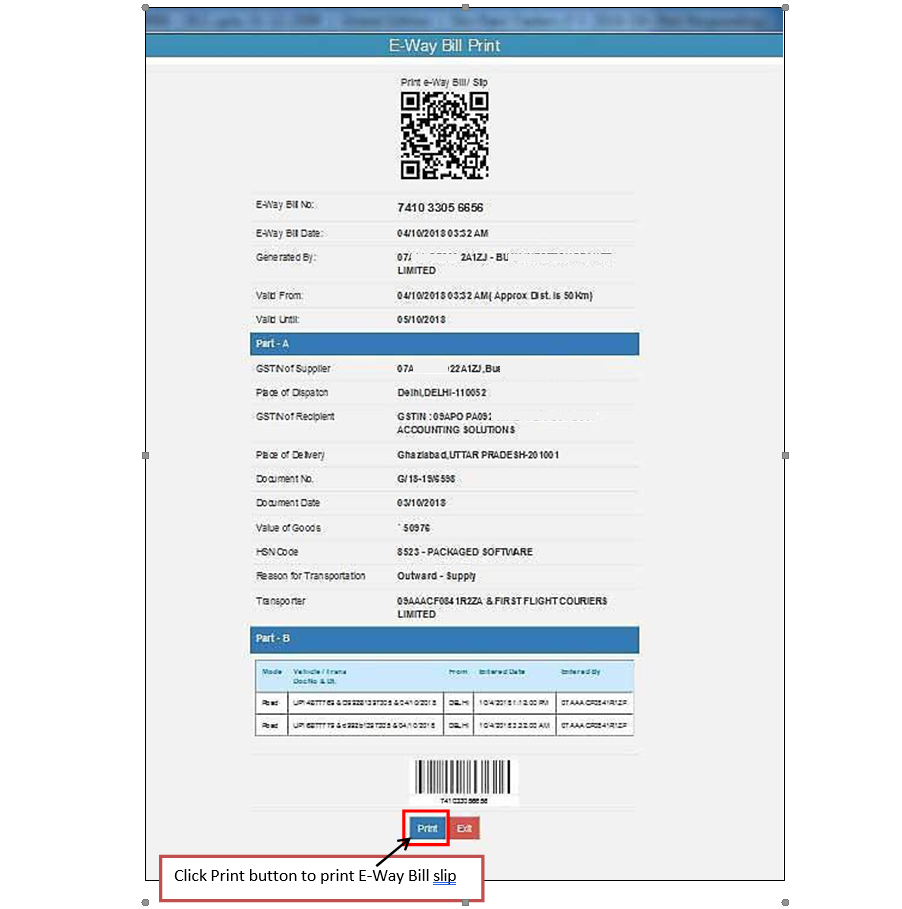
Many businesses keep a digital copy on the driver phone in addition to a printed copy. The detailed print option includes the full Part A and Part B information, while the compact option fits a single page. See the print guide for both.
Checking E-Way Bill status
You can check the status of an e-way bill at any time using its EBN. The status shows whether the bill is active, expired or cancelled, along with the Part B and vehicle details and the current validity. This is useful before dispatch, to confirm a bill is valid, and during an audit, to reconcile bills against invoices.
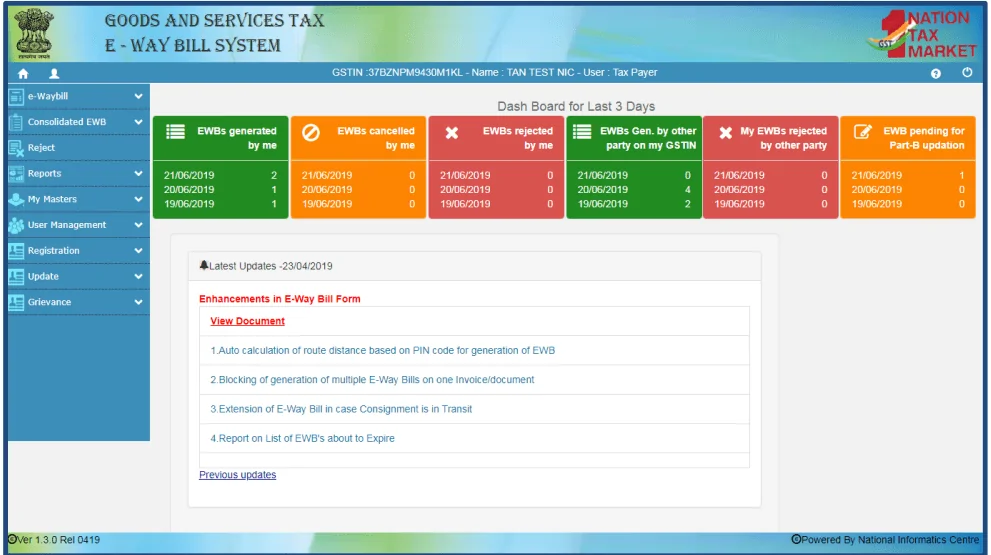
Recipients can also view the bills generated against their GSTIN, which helps them confirm that incoming consignments are correctly documented.
Cancelling an E-Way Bill
If a bill was generated by mistake, or the goods were not transported, you can cancel it within 24 hours of generation, provided it has not already been verified by an officer in transit. The cancel option asks for the EBN and a reason, and once cancelled the bill cannot be used for movement.
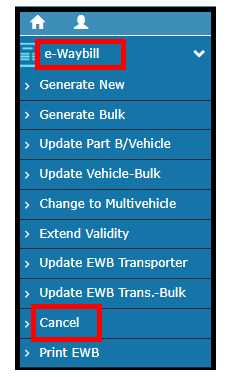
If the 24-hour window has passed, you cannot cancel the bill, but you can avoid problems by generating a fresh, correct bill and keeping a clear record of why the earlier one was not used.
Penalties for non-compliance
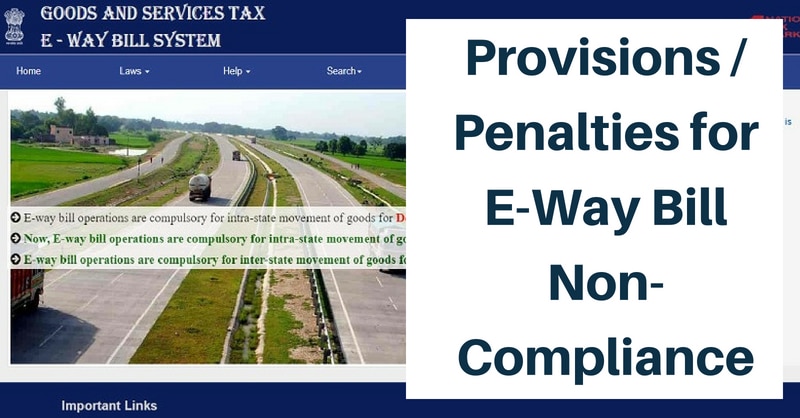
Moving goods without a valid e-way bill can lead to a penalty of ₹10,000 or the amount of tax sought to be evaded, whichever is higher. In addition, the goods and the vehicle can be detained or seized until the dues and penalty are paid. Common triggers are an expired bill, a wrong or mismatched vehicle number, and no bill at all for a consignment that crossed the threshold.
To estimate your exposure for a given tax amount, use the penalty calculator. The safest practice is to generate the bill before the goods move and to extend validity before it expires.
E-Way Bill validity and distance
Validity is based on the approximate distance the goods travel. For regular cargo the bill is valid for one day for every 200 km or part of it; for over-dimensional cargo the rate is one day for every 20 km. The validity clock starts at the first Part B entry, not at Part A. If the goods are still in transit as expiry approaches, the bill can be extended from a few hours before expiry until a few hours after. Use the validity calculator to find the exact number of days and the expiry date for your route.
E-Way Bill rules by state
The portal and the core rules are national, but two things vary by state: the intra-state threshold and the administering tax department. Each state also has a two-digit GST code that forms the first two digits of every GSTIN registered there, for example 27 for Maharashtra, 24 for Gujarat, 07 for Delhi, 29 for Karnataka, 09 for Uttar Pradesh and 33 for Tamil Nadu. Browse all states to see the threshold and department for your location.
Popular guides
Free tools
About this site
EWayBill.org is an independent, ad-supported information resource. We are not affiliated with the government, GSTN or NIC, and we never ask for your login. Everything here is to help you understand and use the official system with confidence. Learn more about us or read our editorial and fact-checking policies.